
When printing multiple copies of a document, you may notice a setting called Collate in your printer options. Many users select this option without knowing exactly what it does or when it should be used.
So, what does collate mean on printer?
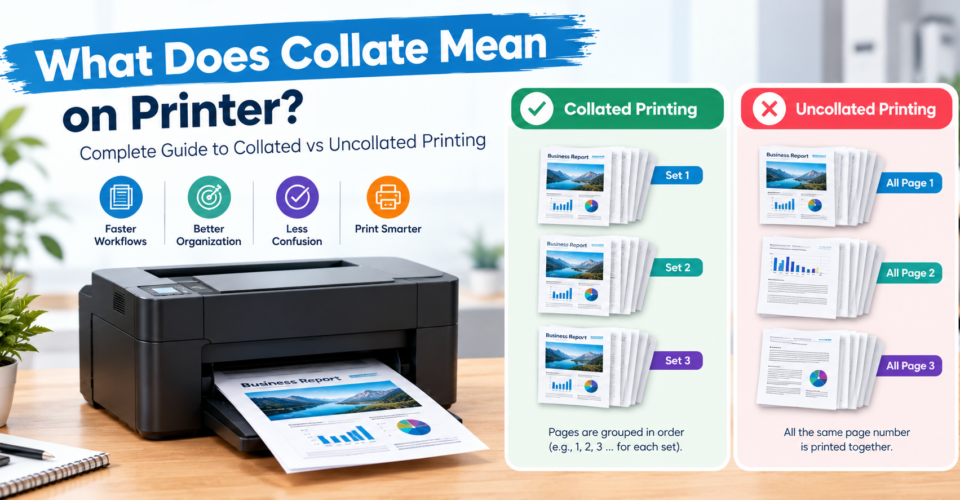
Collate means arranging the pages of multiple printed copies into complete sets. Instead of printing all copies of one page together, the printer organizes each copy in the correct page sequence.
For example, if you print three copies of a five-page document:
With Collate Enabled:
Copy 1: 1-2-3-4-5
Copy 2: 1-2-3-4-5
Copy 3: 1-2-3-4-5
Without Collate:
Page 1: 1-1-1
Page 2: 2-2-2
Page 3: 3-3-3
The number of pages remains the same. The difference is only how the printed pages are organized after the print job finishes.
Collated printing is useful for documents that need to stay together, including reports, manuals, catalogs, brochures, and printed materials used with product packaging.
For businesses that combine printed materials with physical products, organized documents can become an important part of the overall packaging workflow. Companies often combine printed inserts, product information, and branded materials with custom packaging solutions to create a complete customer experience.
Quick Answer: What Does Collate Mean When Printing?
Collate means printing multiple copies as complete document sets instead of grouping identical pages together.
For example, imagine you need to print 10 copies of a six-page product manual. With collate enabled, the printer produces 10 complete manuals, with each set following the sequence 1-2-3-4-5-6.
Without collate, the printer may produce all copies of page 1 first, followed by all copies of page 2, then page 3, and so on. This means employees may need to manually sort the pages afterward.
For offices, production teams, and businesses that regularly print multi-page materials, collating can save time because employees do not have to manually sort every page into complete sets.
What Does Collate Mean in Print Settings?
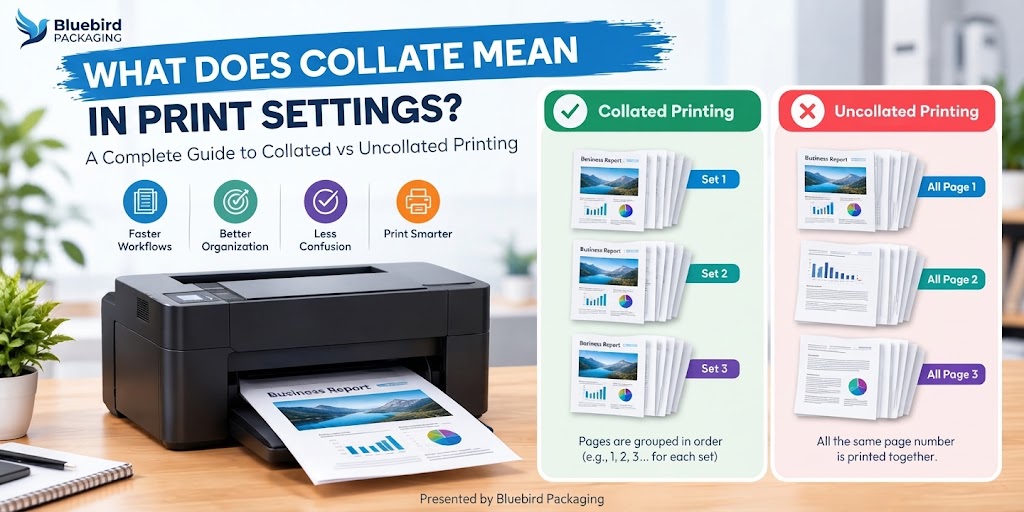
In printer settings, collate controls the output order of a multi-page document when multiple copies are requested.
The printer driver uses the selected print preferences to determine whether each copy should be produced as a complete set or whether identical pages should be grouped together.
Depending on the printer, operating system, and software being used, the collate option may appear under:
- Printer Settings
- Print Options
- Paper Handling
- Finishing Settings
- Output Settings
The exact location can change depending on your printer model and print driver.
It is also important to understand what collate does not do. Collating does not improve print quality, change colors, increase resolution, create booklet layouts, or automatically print double-sided. Its primary purpose is to control how multiple printed copies are organized.
How Does the Collate Option on Printer Work?
When collate is enabled, the printer follows the original page sequence and creates complete copies of the document.
For example, if you print a four-page instruction sheet, the printer can produce:
Copy 1: 1-2-3-4
Copy 2: 1-2-3-4
Copy 3: 1-2-3-4
This can be especially useful for:
- Product manuals
- Care guides
- Warranty cards
- Instruction sheets
- Promotional inserts
When printed materials are included inside product packages, keeping each document set together helps ensure that the information matches the correct product or order.
Businesses can also plan these printed components alongside custom boxes to create a more organized packaging workflow.
Collated Printing vs Uncollated Printing
What Is Collated Printing?
Collated printing produces complete copies of a document in the correct page sequence. Instead of requiring someone to organize the pages afterward, each printed set is already arranged.
Common examples include:
- Training manuals
- Product catalogs
- Presentations
- Instruction booklets
- Packaging documents
What Is Uncollated Printing?
Uncollated printing groups identical pages together. For example, if you print a five-page document 100 times, the printer may produce 100 copies of page 1, followed by 100 copies of page 2, then page 3, and so on.
This approach can be useful when pages need additional processing, sorting, finishing, or assembly before the final document is created.
Collate Printing Example
Imagine an online store preparing product guides for customers. Each guide contains:
- Product details
- Setup instructions
- Care information
- Warranty details
If the business needs 500 copies, collated printing creates ready-to-use document sets. Each set contains the complete guide in the correct sequence.
These sets can then move into fulfillment along with the product and packaging.
Ecommerce brands can combine organized printed materials with ecommerce packaging solutions to create a consistent unboxing experience.
When Should You Use Collate When Printing?
Collate is most useful when you are printing multiple copies of a multi-page document and each copy needs to remain together.
It is commonly used for documents that will be distributed, assembled, or included with products.
Reports and Business Documents
Collated printing works well for reports, proposals, presentations, and internal documents.
For example, if a company creates a 25-page report for 20 employees, collating can produce 20 complete reports rather than requiring employees to sort 500 individual pages.
Manuals and Instruction Documents
Collation is particularly useful for:
- Product manuals
- Assembly instructions
- User guides
- Safety documents
- Care instructions
Printed instructions can be placed inside product boxes so customers receive the information needed to use or care for the product.
Packaging businesses may combine these documents with retail packaging to support a more complete product presentation.
Catalogs and Promotional Materials
Businesses can use collated printing for:
- Product catalogs
- Company brochures
- Sales presentations
- Promotional booklets
Packaging Inserts and Product Information Sheets
Product packaging often includes several printed components, such as:
- Thank you cards
- Product information sheets
- Warranty inserts
- Instruction cards
- Promotional materials
- Care guides
Collation helps keep multi-page sets together before they are added to the final package. Businesses can plan these printed components alongside custom packaging printing.
When Should You Leave Collate Off?
Collating is not always the right option. Certain printing workflows are more efficient when identical pages are grouped together.
Printing Single-Page Documents
For single-page documents, collating usually provides little or no benefit. Examples include:
- Flyers
- Labels
- Posters
- Single-page advertisements
Creating Large Page Batches
If you need 1,000 copies each of page 1, page 2, and page 3 and those pages will later be assembled or processed separately, leaving collate off may better match the production workflow.
Preparing Materials for Special Finishing
Certain production workflows involve additional steps such as:
- Cutting
- Folding
- Binding
- Packaging assembly
In these situations, the preferred page order may depend on the finishing and assembly workflow.
How to Print Collated Copies
The exact steps may vary depending on your printer and software, but the general process is straightforward:
- Open the document and check the page order, sequence, images, text formatting, and final artwork.
- Open the print dialog by selecting File → Print.
- Select the number of copies you need.
- Enable Collate under Print Settings, Printer Preferences, Paper Handling, or Finishing Options.
- Review a test copy to confirm the correct order, complete pages, accurate information, and intended use.
How to Collate When Printing on Windows
- Open your document.
- Select File.
- Select Print.
- Choose your printer.
- Enter the number of copies.
- Enable the Collate checkbox.
- Print a test copy before producing the full quantity.
Depending on the printer driver, the option may instead appear under Printer Properties, Advanced Options, Finishing Settings, or Output Settings.
How to Collate When Printing on Mac
- Open your document.
- Select File → Print.
- Enter the number of copies.
- Open Paper Handling.
- Select Collate Sheets.
- Confirm the settings and print.
Available options can vary depending on the printer, software, and printer driver.
Collate vs Duplex Printing: What Is the Difference?
Duplex printing reduces paper usage by printing on both sides of a sheet, while collate organizes multiple copies into the correct sequence.
You can use both settings together. For example, when producing a 20-page manual, duplex printing can reduce the number of sheets required while collating organizes each complete manual.
Collate vs Booklet Printing
Collate and booklet printing perform different functions.
Collate Printing
Collating creates complete copies in the original page order.
Copy 1: 1-2-3-4
Copy 2: 1-2-3-4
Booklet Printing
Booklet printing changes the page arrangement so the printed pages can be folded and potentially bound into a booklet. It may involve special page placement, folding, and binding requirements.
For example, a 16-page booklet needs the pages positioned appropriately for the folded publication. Collate alone does not create this booklet layout.
Premium printed materials may combine booklet-style documents with rigid packaging as part of a complete product presentation.
Manual Collation vs Automatic Collation
Automatic Collation
With automatic collation, the printer or production system handles the page organization.
Advantages include:
- Faster processing
- Reduced manual work
- Consistent page arrangement
- Easier document handling
Manual Collation
Manual collation requires a person to sort the printed pages into complete sets.
It can be useful for:
- Small quantities
- Custom document combinations
- Special packaging projects
- Mixed printed materials
However, manual sorting generally requires more time and careful checking to make sure every set contains the correct pages.
How Collation Fits Into a Packaging Workflow
Printing is only one part of the complete product experience. A packaging workflow may include the product, box, printed information, protective materials, and other branded components.
Collation becomes useful when a product requires multi-page printed materials such as:
- Product manuals
- Assembly instructions
- Care guides
- Warranty documents
- Product catalogs
- Promotional booklets
1. Artwork Preparation
Before printing, businesses should check:
- Page order
- Product information
- Brand elements
- Images
- Instructions
- Print specifications
Packaging artwork may include inserts as well as outer package design. Planning these elements together through custom packaging solutions can help create a consistent presentation.
2. Printing the Materials
Depending on the product and brand, printed components may include:
- Instruction sheets
- Product guides
- Thank you cards
- Brand cards
- Promotional inserts
3. Collation and Quality Checking
Once materials are printed, businesses should confirm:
- Correct page order
- No missing pages
- Correct quantity
- Correct product matching
For example, a skincare brand may need to ensure that product instructions, ingredient information, and usage guides are kept together before they are placed inside the correct package.
4. Packaging Assembly
The final packaging assembly may include:
- Product
- Printed inserts
- Protective elements
- Branding materials
- Outer box
Food companies, for example, may use custom food packaging together with printed product information and promotional materials.
Create Packaging That Works With Your Printed Materials
From product inserts and instruction sheets to branded boxes, Bluebird Packaging can help you create packaging solutions that support a complete and organized customer experience.
Why Collated Printing Matters for Product Packaging
Packaging is often one of the first physical interactions a customer has with a product. Small details, including the organization of printed materials, can therefore become part of the overall presentation.
Reducing Manual Sorting
Without collation, employees may need to manually sort pages into complete document sets. For larger quantities, this can add unnecessary handling time.
Improving Fulfillment Accuracy
Consider a cosmetic company that includes several printed documents with its products, such as skincare instructions, ingredient information, and usage guides. Keeping the appropriate materials together can help reduce the possibility of placing incomplete information inside a package.
Businesses creating cosmetic packaging often consider printed materials as part of the overall customer experience.
A bakery brand may similarly include storage instructions, brand cards, and promotional offers alongside its products.
Supporting Brand Presentation
Organized printed materials can reinforce important brand elements such as:
- Logo
- Brand message
- Product information
- Care instructions
- Customer guidance
Collation, Finishing, and Binding: Understanding the Difference
For example, a product booklet workflow may involve Printing → Collation → Folding → Binding → Packaging. Each step serves a different purpose within the production process.
Common Collation Mistakes
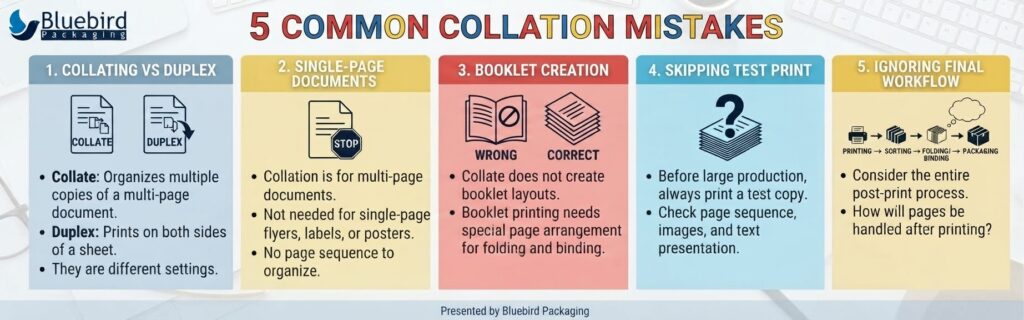
1. Thinking Collate Means Double-Sided Printing
Collate and duplex printing are different settings. Collate organizes multiple copies, while duplex printing controls whether the printer uses both sides of a sheet.
2. Using Collate for Single-Page Documents
Collation is primarily useful for multi-page documents. For single-page flyers, labels, or posters, there is generally no page sequence to organize.
3. Assuming Collate Creates Booklets
Collate does not automatically create booklet layouts. Booklet printing uses a different page arrangement designed for folding and binding.
4. Skipping a Test Print
Before producing a large quantity, print a test copy. Check the page sequence, images, text, product information, and overall presentation.
5. Ignoring the Final Workflow
The best print setting depends on what happens after printing. If pages will be sorted, cut, folded, bound, or assembled into packaging, consider the entire workflow before selecting collate.
Does Collate Affect Print Quality?
No. Collate only changes the arrangement of printed pages. It does not directly change print quality.
Print quality depends on factors such as:
- Printer resolution
- Paper quality
- Ink or toner
- Artwork quality
- Color settings
- Printing technology
If all other settings remain the same, collated and uncollated printing should have the same print quality.
Does Collate Use More Paper?
No. Collating does not increase the number of pages required for a print job.
For example, a 10-page document printed 100 times still requires 1,000 pages.
Collate only determines whether those pages are organized as complete sets:
Collated: 1-10, 1-10, 1-10, and so on.
Uncollated: All page 1 copies, then all page 2 copies, and so on.
How Businesses Can Use Collated Printing With Custom Packaging
Food Packaging
Food brands may use printed materials for:
- Product information
- Preparation instructions
- Brand cards
- Promotional materials
These materials can be coordinated with custom food packaging to create a consistent customer experience.
Bakery Packaging
Bakery businesses may use printed inserts for:
- Storage instructions
- Ordering information
- Brand messaging
For products such as cakes, cookies, and gift items, related packaging solutions can include bakery packaging boxes.
Soap and Personal Care Products
Soap and personal care brands can include printed inserts containing product details, ingredients, usage information, and brand messaging.
These materials can complement soap packaging and help communicate useful information to customers after purchase.
Ready to Create Custom Packaging for Your Products?
Whether you need custom printed boxes, product inserts, retail packaging, or packaging designed around your product dimensions, Bluebird Packaging can help bring your packaging concept together.
Frequently Asked Questions
What does collate mean on a printer?
Collate means arranging the pages of multiple printed copies into complete document sets. For example, a five-page document printed three times would produce three complete five-page sets when collate is enabled.
What does collate mean when printing multiple copies?
When printing multiple copies, collate tells the printer to organize each copy in the correct page sequence. Instead of grouping all copies of page 1 together, each document is printed as a complete set.
What does collate mean in print settings?
In print settings, collate controls the order in which pages are arranged when multiple copies of a multi-page document are printed.
Is collate the same as double-sided printing?
No. Collate organizes multiple copies into complete sets, while double-sided or duplex printing places content on both sides of the paper. The two settings can be used together.
Is collate the same as booklet printing?
No. Collation creates complete document sets in the original page sequence. Booklet printing rearranges pages so they can be folded and assembled into a booklet.
Should I collate when printing multiple copies?
If you are printing multiple copies of a multi-page document and each copy needs to remain together, collating is usually useful. If pages will be processed or assembled separately, leaving collate off may better suit the workflow.
What is manual collation?
Manual collation means a person sorts printed pages into complete document sets after printing. It may be useful for small quantities or specialized document and packaging projects.
Does collate affect print speed?
Collation can affect how a printer processes a multi-copy job, but the actual impact depends on the printer, document, software, and production workflow. In many cases, automatic collation can reduce the time required for manual sorting after printing.
Why can’t I find the collate option?
The collate option may be located under Printer Properties, Paper Handling, Finishing, Output Settings, or Advanced Options. Its availability and location depend on the printer model, driver, operating system, and software being used.
Final Takeaway
So, what does collate mean on printer?
Collate means arranging multiple copies of a multi-page document into complete sets. It helps businesses, offices, and production teams reduce manual sorting and keep printed materials organized.
Collated printing is useful for reports, manuals, catalogs, product documents, and packaging materials that need to remain together.
For businesses preparing products for customers, organized printed components can support a smoother packaging workflow. When combined with the right structure, materials, and design, packaging becomes a complete system that protects products and communicates the brand.
Bluebird Packaging helps businesses create packaging solutions designed around their products, industries, and presentation needs, from retail and food packaging to premium product boxes and custom printed packaging.