
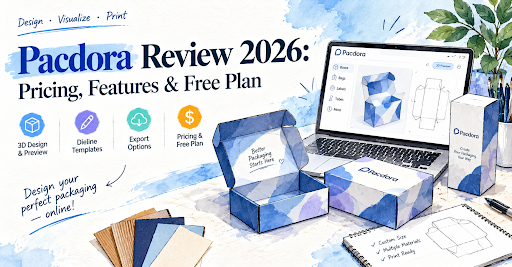
If you want to design packaging online, preview a box in 3D, or create a dieline without starting from a blank page, Pacdora is worth exploring. This Pacdora review explains its main features, free-plan limitations, pricing structure, export options, commercial-use terms, and how to prepare a design for printing.
Quick answer: Pacdora is a browser-based design platform for creating packaging mockups, customizable box templates, dielines, and product visuals. Its free tools can help you explore ideas, while some downloads, higher-resolution exports, and usage permissions depend on your plan. However, a digital mockup is not the same as a production-approved packaging file: before printing, ask your packaging manufacturer to verify the dimensions, material, dieline, and artwork.
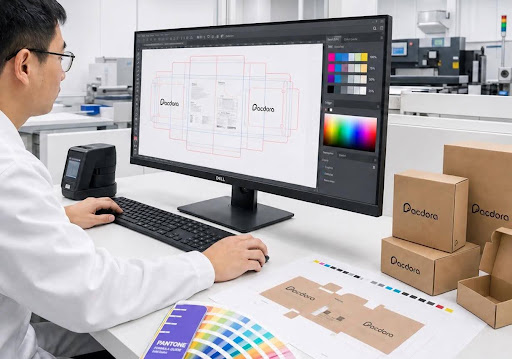
The right choice depends on your goal. If you need a fast visual concept, Pacdora may be enough. If you need detailed structural engineering, precise vector artwork, or boxes manufactured to your specifications, you may also need a professional design tool or a packaging supplier.
Pacdora at a Glance
- What it does: Creates 3D product mockups, packaging visuals, and customizable dieline templates.
- How it works: Runs in a web browser, so you can work without installing a traditional desktop design application.
- Free access: Offers free tools and templates, but not every export or premium feature is free.
- Dieline formats: Pacdora lists formats such as AI, PDF, DXF, and JPG for relevant template workflows; available options depend on the tool and plan.
- Best for: Designers, ecommerce sellers, startups, and brands that want to visualize packaging before production.
- Main limitation: The final dieline and print files may need professional review before manufacturing.
- Important licensing note: Pacdora’s pricing page distinguishes personal-use plans from its Business plan, which it lists as permitting commercial use. Check the current terms before using an export in a paid client project or commercial campaign.
What Is Pacdora?
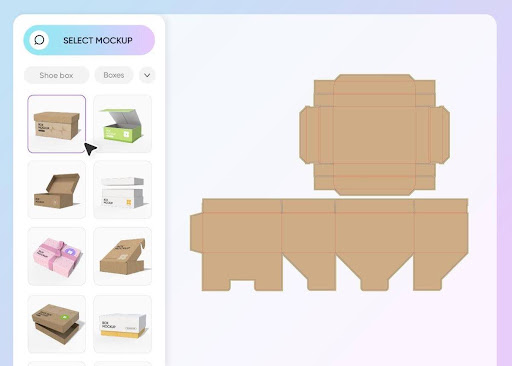
Pacdora is an online packaging and product-visualization platform. It provides tools for exploring packaging structures, customizing templates, applying artwork, and creating realistic-looking mockups for presentations or digital marketing.
For example, a skincare brand planning a new serum box might choose a carton template, enter its dimensions, add the logo and product information, and preview how the artwork looks on the folded package. A designer could then use that preview to discuss the concept with a client before ordering a physical sample.
Pacdora offers separate dieline tools and a mockup generator. Its template library includes multiple box styles and other packaging formats.
It is important to understand what Pacdora does and what it does not do. Pacdora helps you create and visualize a design. It does not automatically guarantee that the design will fit your product, run correctly on a manufacturer’s machinery, or meet every printing requirement.
If you are new to packaging, start with this overview of different packaging types to understand which structures suit different products.
Pacdora Features: What Can You Actually Do With It?
Pacdora’s strongest use case is bringing packaging concepts to life quickly. Its available tools cover several stages of the design process, although the features and export permissions available to you may depend on the selected tool and subscription.
1. Packaging Dieline Generator
A dieline is a flat technical layout that indicates where packaging material should be cut, folded, and sometimes glued. It serves as a blueprint for converting a flat sheet into a finished box or carton.
Pacdora’s template tools let users select a packaging structure and customize supported dimensions and material settings. The platform lists downloadable formats such as AI, PDF, DXF, and JPG for applicable templates.
This can be useful when you need a starting point for:
- Folding cartons for cosmetics or retail products.
- Mailer boxes for ecommerce orders.
- Gift boxes and presentation packaging.
- Shipping cartons and selected corrugated structures.
- Display boxes for retail counters.
- Pouches and other supported packaging formats.
However, a template is not automatically a perfect fit for every product. Board thickness, internal dimensions, locking tabs, glue flaps, and manufacturing tolerances can affect the final result.
Before creating your design, learn how box dimensions are measured and confirm whether the required dimensions refer to the inside or outside of the finished package.
2. Pacdora 3D Mockup Generator
The 3D mockup generator lets you visualize how artwork may look on a finished product or package. Pacdora’s tool page describes a browser-based workflow with options for uploading artwork and adjusting the mockup’s angle, layers, and background.
This feature is particularly useful for:
- Presenting early packaging concepts to clients.
- Comparing logo placement across package panels.
- Previewing branding before ordering a sample.
- Creating visual assets for online stores and presentations.
- Reviewing multiple design directions without producing every version physically.
A 3D mockup is a visual representation, not proof of physical performance. It may look realistic on a screen while hiding problems such as insufficient board strength, difficult assembly, poor product fit, or artwork positioned too close to a fold.
Practical tip: Review the mockup from the front, back, sides, top, and bottom. Then check the flat artwork separately. A design that looks balanced in 3D can still contain text, logos, or legal information in the wrong place on the dieline.
3. Customizable Box Templates
Pacdora provides a library of packaging templates that can give designers a starting point instead of requiring them to draw every panel from scratch. The official template page lists more than 3,000 box templates and describes customization options such as dimensions, material, and thickness.
Templates are useful when you already know the general structure you want. For instance, a subscription brand might begin with a mailer box, while a cosmetic company might choose a folding carton.
The best template is not necessarily the one that looks most attractive. It must also suit the product’s weight, dimensions, fragility, presentation requirements, and distribution method.
If you’re exploring packaging structures for a real product, compare the available custom packaging options before committing to a particular shape.
4. AI Design and Background Tools
Pacdora lists AI-powered tools for packaging concepts, product mockups, backgrounds, and other design tasks in its online tools directory.
These tools can help generate early creative directions or produce visual scenes for product presentations. They are best treated as design aids rather than automatic replacements for an approved brand identity or production artwork.
Before using AI-generated material, check:
- Whether the output accurately represents your actual product.
- Whether logos, labels, and text are spelled correctly.
- Whether the image or asset is private under your current plan.
- Whether the applicable license allows your intended use.
- Whether the generated artwork can be adapted to the actual dieline.
Do not upload confidential launch artwork or unreleased client designs to an online tool until you have reviewed its privacy policy and the terms for your account.
5. Dieline-to-3D Visualization
If you already have a packaging layout, a dieline-to-3D workflow can help you understand how a flat design may fold into a package. Pacdora lists tools for turning packaging layouts into three-dimensional visuals.
This is useful for checking whether the overall concept looks correct before sharing it with a client or manufacturer. However, it should not replace a technical prepress check.
A dieline can look correct on screen and still need adjustments for crease positions, material thickness, glue areas, locking tabs, or production equipment.
6. Export and Presentation Options
Export capability is one of the most important parts of a Pacdora review because creating a design and downloading a usable file are two different tasks.
Pacdora lists AI, PDF, DXF, and JPG options for applicable packaging templates. Its pricing page also differentiates plans by image resolution, video output, and template-export permissions.
Before paying, confirm exactly what you need to export:
- A high-quality image for a product page.
- A video or animation for a presentation.
- A vector dieline for further editing.
- A file your packaging printer can inspect.
- A mockup for an internal approval meeting.
Do not assume that every file type is available for every template or subscription. Open the specific tool, check its export menu, and confirm the current plan restrictions before purchasing.
7. Browser-Based Workflow
Pacdora’s online workflow can be convenient when you want to experiment without installing a full structural-design application. It may suit independent designers and small businesses that need a relatively accessible way to explore packaging concepts.
Nevertheless, browser-based convenience does not remove the need for design knowledge. Accurate measurements, artwork preparation, material selection, and print specifications still matter.
For more context on preparing a package visually, see this guide to packaging design.
Is Pacdora Free to Use?
Yes, Pacdora offers free access to selected tools and templates, but the free experience does not include every premium feature or export option. Its official pricing and template pages distinguish free features from paid-plan capabilities.
The free plan can be a sensible starting point if you want to explore the interface, test a concept, or see whether a particular template fits your needs. It may be less suitable if you need downloadable production files, high-resolution mockups, or commercial-use permissions that are not included in your current access.
| Task | What to check before relying on the free plan |
|---|---|
| Explore packaging templates | Is the required template available? |
| Create a basic mockup | Can you save or export the result you need? |
| Download a dieline | Is the required format included in your plan? |
| Export a high-resolution image | What resolution and watermark restrictions apply? |
| Generate AI visuals | How many credits are available, and are outputs public or private? |
| Use designs commercially | Does the license permit the intended business use? |
The important distinction is between free to try and free for every business use. A free tool can be valuable for learning and concept development without necessarily being suitable for final client deliverables or production files.
Check the official Pacdora pricing page before starting a paid project, because plan details and terms can change.
Pacdora Pricing: What Do the Plans Include?
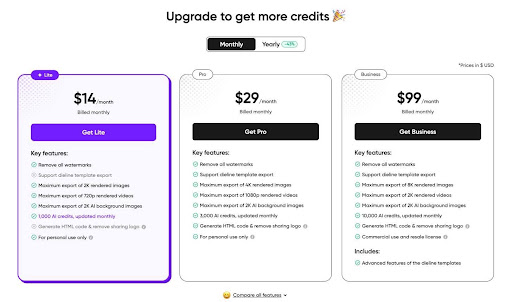
Pacdora presents Free, Lite, Pro, and Business options on its pricing page. The features vary by plan, particularly for export quality, dieline downloads, AI credits, and usage permissions.
Because subscription prices and promotional displays can change, check the live pricing page for the current amount in your region and billing cycle rather than relying on a static price copied from an older review.
| Plan | Potential fit | Important consideration |
|---|---|---|
| Free | Beginners exploring the tools | Confirm export and usage limits before starting a deliverable |
| Lite | Users who mainly need basic mockups | Check image resolution, watermarks, and personal-use restrictions |
| Pro | Designers who need more exports and additional workflow features | Verify dieline export access and license conditions |
| Business | Businesses with broader output and commercial-use requirements | Confirm the precise rights, team features, and terms for your project |
This is a functional comparison, not a guarantee that every feature is available for every account. The official pricing page is the authority for the current plan details.
Pacdora Monthly Pricing vs. Annual Pricing
Before subscribing, compare the total annual commitment with the cost of paying month by month. An annual plan can make sense if you use the software regularly, but a monthly plan may be more practical if you only need it for a short design project.
Check these details before checkout:
- Is the displayed amount monthly or the monthly equivalent of annual billing?
- Does the subscription renew automatically?
- Can you cancel, and when does access end?
- Are refunds available under the current terms?
- Are the exports you need included?
- Does the plan cover your intended commercial use?
Do not choose a plan based only on the lowest advertised monthly amount. The right plan is the least expensive one that legally and technically supports your intended workflow.
Pacdora Free vs. Paid: Which Is Worth It?
The free plan is a reasonable starting point for learning the platform and testing a design idea. A paid plan becomes more relevant when you repeatedly need exports, better image quality, advanced workflow features, or specific licensing permissions.
For example, a student making a practice box mockup may have different requirements from a freelance designer delivering a packaging concept to a paying client. A brand preparing product artwork for commercial use should pay particular attention to licensing and production requirements.
My recommendation: Start by testing the exact template and output you need. Only upgrade after you confirm that the required export format, resolution, and usage rights are available under the plan you are considering.
Commercial Use: Can You Use Pacdora Designs for Business?
Commercial licensing deserves special attention if you design packaging for a company, sell products online, create assets for a client, or publish mockups in an advertising campaign.
Pacdora’s pricing page lists Lite and Pro as personal-use plans and identifies Business as permitting commercial use. Because licensing language can change and the terms may distinguish between different kinds of output, review the current plan terms before publishing or selling work made with the platform.
Before using a Pacdora asset commercially, establish:
- Whether your subscription allows the intended use.
- Whether you may deliver the output to a client.
- Whether the license covers advertisements and ecommerce listings.
- Whether generated AI assets have separate restrictions.
- Whether any third-party artwork, fonts, logos, or images need their own permissions.
Do not assume that owning your logo means you automatically own every component of a mockup that contains it. The rights to your original artwork and the rights governing a platform’s templates, models, and generated assets may be different.
If your work involves client contracts, valuable intellectual property, or a major product launch, get written clarification from the provider when the license is ambiguous.
How to Use Pacdora: Step-by-Step Packaging Design Tutorial
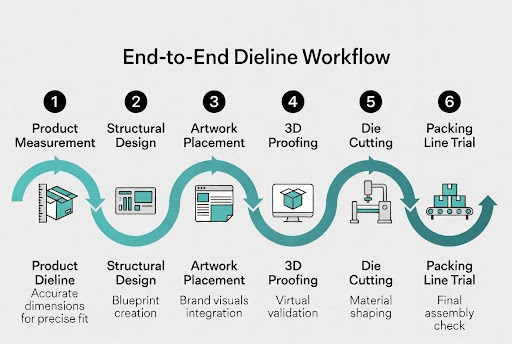
The easiest way to learn Pacdora is to work on one real product rather than experiment with random templates. Use the product’s actual measurements, choose a suitable structure, and treat the first mockup as a concept that needs checking.
Step 1: Measure Your Product Correctly
Measure the product’s length, width, and height, including any parts that extend beyond the main body. If the product needs protective wrapping or an insert, account for that space as well.
First, decide whether your dimensions refer to the product itself, the internal space required inside the box, or the outside dimensions of the finished package. These are not interchangeable.
This guide on how to measure a box can help you understand the basic measurements before you select a template.
Step 2: Choose the Packaging Structure
Search for a template that fits the product’s purpose. A mailer box, folding carton, rigid gift box, and corrugated shipping box serve different needs.
Consider the product’s weight, fragility, shelf presentation, shipping method, and how customers will open the package. Do not select a structure simply because its mockup looks attractive.
For a subscription or ecommerce product, compare the structure with the intended mailer box options. For heavier items or shipping applications, a corrugated structure may be more appropriate.
Step 3: Enter the Dimensions and Material
Enter the measurements supported by the selected template. Review the material and thickness settings, but remember that a software setting is not a substitute for the manufacturer’s material specification.
Different materials behave differently when cut, folded, glued, and transported. A carton intended for a lightweight cosmetic product may not be suitable for a heavy item that needs shipping protection.
Explore the differences between common packaging materials before finalizing your design direction.
Step 4: Add Your Artwork
Upload your logo, product images, colors, and text. Place each element on the correct panel and leave sufficient room around folds, cut edges, glue areas, and closures.
Check the following:
- Is the logo positioned on the intended front panel?
- Does the product name remain readable at the actual package size?
- Are instructions, ingredients, barcodes, and other required details on the correct panels?
- Is important text clear of folds and cutting lines?
- Are images sharp enough for the intended output?
- Are the correct fonts and brand colors being used?
Keep a separate copy of the original artwork. A mockup preview may help with visualization, but your final print file should follow the printer’s specifications. For more detail, review this guide to packaging artwork preparation.
Step 5: Inspect the 3D Preview
Rotate the mockup and inspect every side. Check whether the artwork wraps correctly around the box and whether important information appears on the intended panels.
Look for issues such as distorted logos, reversed text, misplaced artwork, inconsistent colors, and design elements crossing folds unexpectedly.
Ask another person to review the mockup if it is being presented to a client. A second review often catches layout mistakes that the original designer has become accustomed to seeing.
Step 6: Export the Appropriate File
Open the export menu for your selected template and confirm the file formats available to your account. Depending on the tool and plan, Pacdora lists formats such as AI, PDF, DXF, and JPG for relevant workflows.
Choose an output based on the job:
- Presentation: A clear mockup image may be enough.
- Product listing: Use a high-quality image that accurately represents the actual packaging.
- Further artwork editing: Check whether a suitable editable file is available.
- Manufacturing: Ask the printer which technical file format, line conventions, and production specifications are required.
Do not assume that a JPG mockup can replace a vector dieline or a complete production file.
Step 7: Request a Manufacturer Review
Send the exported design to your packaging supplier for review. Provide the product dimensions, material preference, order quantity, artwork, required finishes, and intended use.
The supplier should confirm whether the structure and dieline are appropriate for the actual production process. Depending on the job, they may need to modify the design or prepare a new production dieline.
Step 8: Approve a Physical Proof or Sample
Whenever practical, inspect a physical sample before approving a large order. A digital preview cannot fully demonstrate how a package feels, folds, closes, protects the product, or reproduces colors in print.
Check the fit, print alignment, color appearance, material strength, assembly, and overall finish. Approve production only after the relevant details have been confirmed.
How to Print a Pacdora Packaging Design
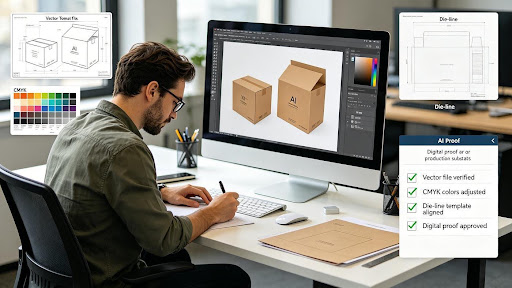
You generally do not print a 3D mockup image to create a finished commercial box. Instead, you prepare the packaging artwork and an appropriate dieline, then have a packaging printer or manufacturer review the files and produce the package.
A mockup image is useful for visualization. The dieline and print artwork serve different purposes and must meet the printer’s technical requirements.
What to Send to Your Packaging Printer
| File or detail | Why it matters |
|---|---|
| Dieline in the requested format | Defines the package layout and cutting/folding structure |
| Print artwork | Contains the graphics, text, and brand elements |
| Finished product dimensions | Helps confirm the package fits the actual product |
| Material and thickness preference | Influences fit, folding, strength, and production |
| Color specifications | Helps the printer manage color reproduction |
| Finish requirements | Clarifies whether lamination, foil, embossing, or other effects are needed |
| Quantity and delivery requirements | Helps the supplier recommend an appropriate production method |
| 3D mockup reference | Communicates the intended finished appearance |
For guidance on preparing files for production, see this overview of packaging printing.
Do You Need CMYK, RGB, or Pantone Colors?
The answer depends on the printer’s workflow and the type of job. RGB is commonly used for digital screens, while print production often requires CMYK artwork or specified spot colors. A Pantone reference may be appropriate when a brand requires a particular spot-color match.
Do not assume that the colors displayed in a browser mockup will match the printed result exactly. Screen brightness, rendering, substrate, ink, and finishing can all affect appearance.
Ask the printer for its color requirements before preparing the final file. If a particular brand color is important, request a proof and confirm the acceptable color variation.
What Is Bleed, and Why Does It Matter?
Bleed is extra artwork extending beyond the final trim edge. It helps prevent unintended white edges if the printed sheet shifts slightly during cutting.
The required bleed and safe-area settings depend on the printer and production method. Keep important text and logos away from trim and fold areas, and follow the specifications supplied for the actual job.
A generic template should not override the printer’s production instructions.
Why a Pacdora Dieline May Need Changes
A digital dieline can be a useful starting point, but the final design may need adjustment for:
- The actual thickness and behavior of the selected board.
- The product’s internal clearance and fit.
- Crease positions, glue flaps, and locking tabs.
- Cutting-die and folding-gluing equipment.
- Inserts, dividers, or protective components.
- Required printing and finishing tolerances.
The more complex the package, the more important it is to involve the manufacturer early.
Pacdora Dielines vs. Production Dielines
A Pacdora dieline is a design starting point; a production-approved dieline is the version confirmed for the specific material, dimensions, and manufacturing process. These files may look similar, but they do not automatically serve the same purpose.
A production team may need to adjust the layout after checking the board, product fit, folding method, tooling, and finishing requirements. This is particularly important for rigid boxes, complex retail displays, multi-part structures, and packaging with custom inserts.
For example, a cosmetic brand may create a visually appealing carton mockup in Pacdora. Before production, its packaging supplier still needs to verify that the carton accommodates the product, closes properly, and works with the selected paperboard.
If you’re exploring packaging for a real product, Bluebird Packaging offers options such as custom cardboard boxes, corrugated boxes, and rigid boxes. The appropriate structure depends on the product and the job—not simply on which template is easiest to design.
Pacdora Pros and Cons
| Pros | Cons |
|---|---|
| Browser-based workflow | Export access depends on the tool and plan |
| Template library provides a starting point | Templates may need manufacturer adjustments |
| 3D previews help communicate design concepts | A mockup cannot prove physical fit or strength |
| Useful for exploring multiple design ideas | Production-ready artwork still requires careful preparation |
| Selected templates support different export formats | File formats and permissions vary by workflow |
| Can support presentations and early product visualization | Commercial licensing must be checked before use |
What Is Pacdora Best At?
Pacdora is most useful when the immediate goal is to visualize packaging, explore a structure, or communicate an idea. It can reduce the friction of starting a concept from scratch.
Its value is less straightforward when you need a highly engineered package, strict production tolerances, or complete control over every technical aspect of the artwork. In those cases, a specialist design tool and manufacturer involvement may be necessary.
Pacdora vs. Canva, Adobe Illustrator, and Esko ArtiosCAD
Pacdora, Canva, Adobe Illustrator, and Esko ArtiosCAD are not direct substitutes in every workflow. Each serves a different purpose, and the best option depends on whether you need a visual concept, graphic artwork, or detailed structural design.
| Tool | Best suited to | Key consideration |
|---|---|---|
| Pacdora | Template-based packaging concepts and 3D mockups | Check export and licensing restrictions |
| Canva | Simple brand graphics, labels, inserts, and presentation assets | Not a replacement for professional structural packaging design |
| Adobe Illustrator | Vector artwork and detailed graphic design | Packaging structures and production dielines may require additional tools or supplied templates |
| Esko ArtiosCAD | Professional structural packaging design and virtual prototyping | A more specialized tool for packaging professionals |
Esko describes ArtiosCAD as software for structural packaging design, product development, and virtual prototyping, including 2D and 3D work.
Adobe Illustrator is a vector-design application, while Pacdora emphasizes accessible online templates and mockups.
Is Pacdora Better Than Photoshop for Packaging Mockups?
For quickly applying artwork to supported 3D packaging templates, Pacdora can be more convenient because mockup generation is part of its workflow. Photoshop can be useful for image editing, retouching, and creating custom presentation scenes, but the workflow may involve more manual steps or separate mockup assets.
Neither tool automatically guarantees that a design is production-ready. If your goal is to manufacture a box, you still need an appropriate dieline, correct artwork, and printer approval.
Can You Use Pacdora and Illustrator Together?
Yes. A designer may use Pacdora to explore a package structure or preview a concept and use Illustrator for further vector-artwork work where the required files and workflow support it. The manufacturer can then confirm the final production layout.
Before building a workflow around these tools, test a small project from start to finish. Confirm that you can move between the necessary file formats without losing scale, line conventions, fonts, or artwork alignment.
Pacdora Alternatives: Which Tool Should You Choose?
The best Pacdora alternative depends on what you are trying to accomplish. If you want easier marketing graphics, choose a graphic-design tool. If you need structural engineering, look at specialist packaging software. If you need physical boxes, work with a manufacturer.
1. Canva — For Simple Packaging Graphics
Canva can be suitable for brand graphics, labels, inserts, and visual presentations. It may be enough when your project mainly involves artwork rather than complex box geometry.
However, check the printer’s requirements before using any design platform for final production files. A graphic layout is not automatically a complete dieline.
2. Adobe Illustrator — For Vector Artwork
Illustrator is useful when you need detailed control over typography, vector shapes, and print artwork. It can be used alongside a supplied dieline or a compatible structural-design workflow.
It may be less convenient than a template-based tool if your only objective is to generate a quick 3D mockup.
3. Esko ArtiosCAD — For Structural Packaging Design
ArtiosCAD is designed for professional structural packaging work, including 2D and 3D design, virtual prototyping, and packaging development.
It is worth investigating when your team needs more advanced control over structures, fit, folding, and production planning than a template-driven tool provides.
4. Blender — For Custom 3D Visualization
Blender can be useful for custom product scenes and 3D rendering when you need flexibility beyond a predefined mockup. It generally requires more 3D knowledge and setup than a packaging-specific template tool.
It is a visualization option, not a substitute for a manufacturer-approved dieline.
5. Work Directly With a Packaging Manufacturer
Sometimes the best alternative is not another software subscription. If you already know the product and packaging requirements, a manufacturer may help you choose the structure, confirm dimensions, review artwork, and prepare a production proof.
For example, a brand that needs printed packaging for a retail launch may benefit more from discussing materials, quantity, and finishes with a supplier than from spending additional time testing mockup tools.
Bluebird Packaging provides custom retail packaging and custom rigid packaging for different product and presentation needs. You can compare options before deciding which design workflow makes sense.
Choosing a Box Structure Before You Design
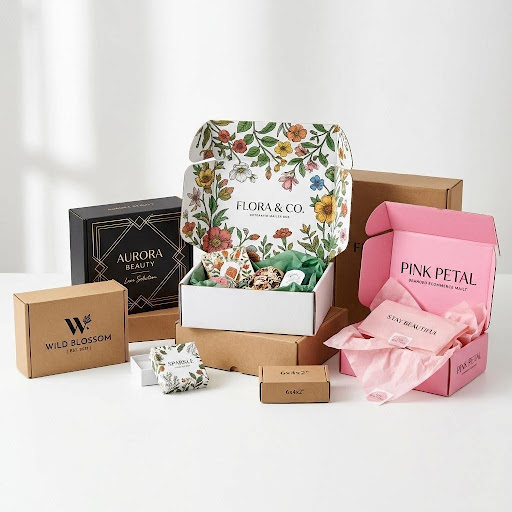
The structure of a package affects its appearance, protection, assembly, shipping, and cost. Before choosing a Pacdora template, define the job the package must perform.
| Packaging type | Common use | What to consider |
|---|---|---|
| Folding carton | Cosmetics, retail goods, lightweight products | Board choice, print quality, closure, and shelf presentation |
| Corrugated box | Shipping and protective applications | Product weight, transit conditions, cushioning, and strength |
| Mailer box | Ecommerce, subscriptions, direct-to-consumer orders | Opening experience, product fit, and shipping needs |
| Rigid box | Premium gifts, presentation packaging, selected luxury products | Structure, wrap, insert, finish, and perceived quality |
| Display box | Retail counters and point-of-purchase presentation | Visibility, access, stability, and shelf space |
A skincare brand, for instance, may need a printed carton for a bottle, while an ecommerce seller shipping several products may need a stronger outer box with internal protection. One mockup tool can help visualize both concepts, but the design decisions and production requirements differ.
If you’re planning food packaging, explore custom food boxes and confirm any product-specific food-contact requirements with the supplier. For cosmetic products, compare suitable cosmetic packaging boxes.
Is Pacdora Worth It for Small Businesses?
Pacdora can be worth trying for a small business if you need to visualize packaging ideas before committing to samples or production. Its value depends on how often you use it, which exports you require, and whether your plan permits your intended use.
It may be useful for a startup preparing a product launch, an online seller developing a new box concept, or a designer showing multiple directions to a client. It may be unnecessary if your packaging supplier already provides the design files and mockups you need.
Small businesses should assess the entire packaging workflow rather than just the software cost. Consider design time, samples, production minimums, shipping, finishing, and revisions.
This guide to packaging for small businesses can help you think through the wider decision.
Before paying for a subscription, ask yourself:
- Will I use the tool regularly or only for one project?
- Do I need a mockup image, a downloadable dieline, or both?
- Does my plan permit my intended commercial use?
- Can my printer work with the file formats I can export?
- Will the manufacturer need to redesign the dieline anyway?
- Would a supplier-provided proof be simpler for this project?
If you only need one packaging design, compare the subscription cost with the time and support required to get the final package manufactured.
How to Keep Packaging Costs Under Control
The software is only one part of the total cost of getting packaging into production. Materials, dimensions, order quantity, print method, finishing, inserts, tooling, and shipping can all affect the final quote.
To keep the process efficient:
- Finalize the product dimensions before designing the box.
- Choose a practical structure for the product and distribution method.
- Avoid unnecessary design revisions by reviewing the artwork carefully.
- Confirm material and finish requirements before requesting a final quote.
- Ask for a physical sample or proof when the project warrants it.
- Compare complete quotes, not just the unit price.
For a broader breakdown, read this custom packaging cost guide. It helps frame the questions to ask a supplier before you commit to a design.
The cheapest-looking mockup is not necessarily the least expensive package to produce. A slightly different structure may reduce material waste, simplify assembly, or provide better protection. Discuss those trade-offs with the manufacturer.
How Bluebird Packaging Fits Into the Pacdora Workflow
Pacdora helps you visualize packaging digitally. Bluebird Packaging’s role is different: it offers custom packaging options for businesses that want to turn a concept into a physical box.
You can use a mockup as a starting point for discussing size, structure, artwork, and finish with a supplier. The final specifications should still be confirmed for the actual product and manufacturing process.
Bluebird Packaging’s website includes packaging options for different product categories, including custom retail boxes, food packaging, cosmetics, and rigid boxes. If you already have a concept, share the product dimensions, material preference, quantity, artwork, and finish requirements when discussing production.
For a clearer understanding of the company’s available options, visit the Bluebird Packaging homepage. When you’re ready to discuss a real order, you can request a custom packaging quote.
A useful quote request should include:
- Product type and dimensions.
- Desired box structure.
- Estimated order quantity.
- Preferred material and thickness.
- Printing requirements and artwork.
- Finishes, inserts, or special features.
- Target delivery date and shipping destination.
Providing this information upfront can make it easier to assess whether your concept needs changes before production.
Frequently Asked Questions About Pacdora
1. Is Pacdora free to use?
Yes. Pacdora offers free access to selected tools and templates, but some exports and premium capabilities require a paid plan. Check the official pricing page to confirm the current limits for your account.
2. How much does Pacdora cost?
Pacdora offers Free, Lite, Pro, and Business plans. Exact subscription pricing can change based on the current offer and billing option, so check the live pricing page before subscribing. Compare the plan’s export features and licensing terms as well as its price.
3. What features does Pacdora offer?
Pacdora offers packaging mockup tools, customizable dieline templates, 3D visualization, and AI-assisted design tools. The available exports and features depend on the selected tool and subscription.
4. Can I use Pacdora for commercial projects?
Pacdora’s pricing page distinguishes personal-use plans from its Business plan, which is listed as permitting commercial use. Review the current license for your plan before using assets in client work, advertising, or commercial product listings.
5. How do I create a box design in Pacdora?
Choose a suitable template, enter the supported dimensions, customize the material settings, apply your artwork, and inspect the 3D preview. Export the appropriate file if your plan permits it, then ask your packaging manufacturer to verify the design before production.
6. How do I download a Pacdora dieline?
Open the selected template or dieline tool and check its download options. Pacdora lists AI, PDF, DXF, and JPG for relevant workflows, but available formats may vary by tool and plan.
7. How do I print a Pacdora packaging design?
Export the appropriate artwork and dieline, then send them to a packaging printer or manufacturer. Provide the product dimensions, material, quantity, and finishing requirements. Have the supplier check the files and approve a proof before printing the full order.
8. Which file formats does Pacdora support?
Pacdora lists AI, PDF, DXF, and JPG for certain packaging-template workflows. The available formats depend on the specific tool and the export options offered to your account. Confirm the printer’s preferred format before finalizing the file.
9. Is Pacdora better than Photoshop for packaging mockups?
Pacdora may be more convenient for supported packaging templates and quick 3D previews. Photoshop is useful for image editing and custom visual compositions. The better choice depends on the task, and neither removes the need to verify a production dieline.
10. What are the best alternatives to Pacdora?
Canva can suit simple packaging graphics, Adobe Illustrator can help with vector artwork, Esko ArtiosCAD is designed for professional structural packaging work, and Blender can support custom 3D rendering. A packaging manufacturer may be the most practical option when you need a physical box rather than another design tool.
11. Are Pacdora dielines ready for printing?
A downloaded dieline can be a useful starting point, but it should not automatically be treated as production-approved. Your manufacturer may need to adjust it for board thickness, product fit, crease positions, glue areas, and machinery.
12. Do I need Pacdora if my packaging supplier provides a design?
Not necessarily. If your supplier already provides suitable mockups, dielines, and production proofs, you may not need a separate subscription. Pacdora is most useful when you want to explore and visualize concepts independently before discussing production.
Final Verdict: Is Pacdora Worth It in 2026?
Pacdora is worth considering if you want a convenient way to explore packaging templates, create 3D mockups, and communicate design ideas without beginning every project from scratch. Its usefulness depends on the features you need, your subscription’s export limits, and whether the license covers your intended use.
The free plan can help you test the workflow. Paid plans may be worthwhile if you need more export options or other premium capabilities, but check the current price and terms before subscribing.
Most importantly, do not confuse a polished 3D mockup with a production-approved package. Confirm dimensions, materials, artwork, and the dieline with your manufacturer, and review a proof before committing to a large print run.
If you’re ready to turn a packaging concept into a real product, explore Bluebird Packaging’s custom packaging options or request a quote to discuss the box structure, materials, quantity, and finishing requirements that suit your project.
Sources and Further Reading
The following official resources were used to check product features, plan distinctions, export options, and structural-design terminology. Pricing and terms should be rechecked before publication because they can change.
- Pacdora Pricing and Plans — current plan features and usage permissions.
- Pacdora Dielines and Box Templates — template library and export formats.
- Pacdora Mockup Generator — online mockup features.
- Pacdora Online Tools — mockup, dieline, and AI design tools.
- Esko ArtiosCAD — structural packaging design and virtual prototyping.